
Create a Google project and get your client ID and secret
To connect SuiteCRM to Google Drive, you need a Google project with the Drive API enabled and an OAuth client. This guide walks you through creating them and downloading your credentials.
Before you start: open Google Drive Settings in SuiteCRM. You’ll need the authorised redirect URL shown there in step 4.
This guide was written in 2018. Google’s console screens have changed since, but the steps are the same.
1. Register an app in Google
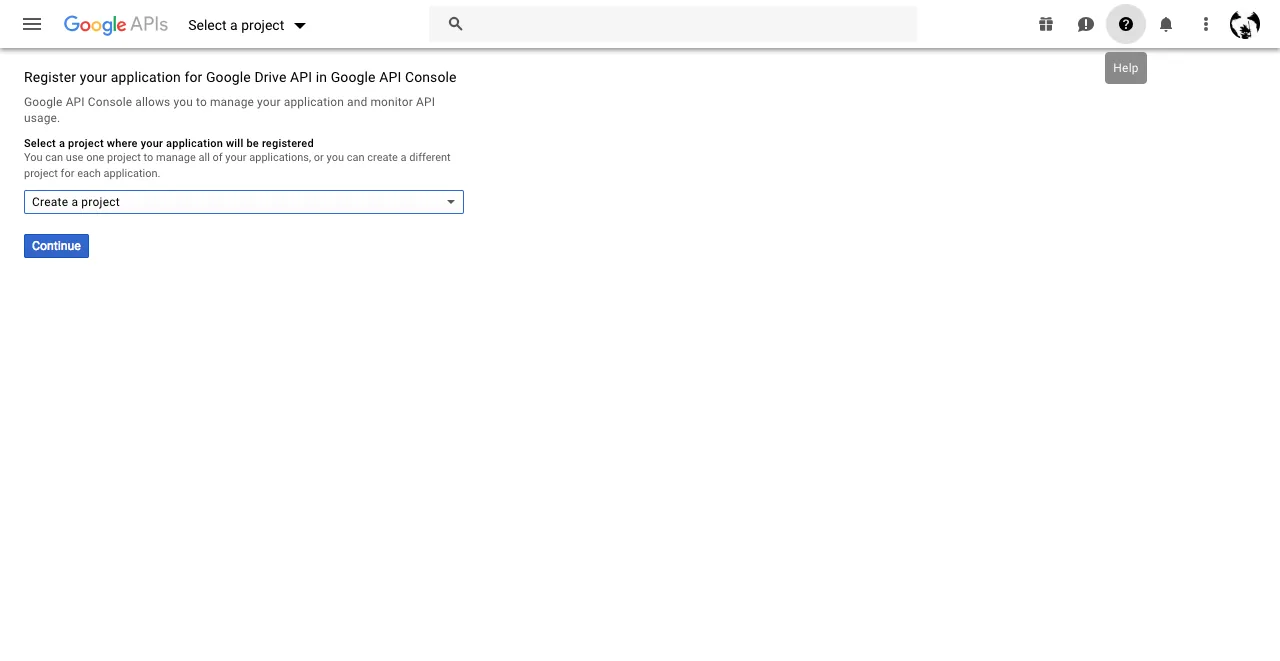
Open the Google Cloud console to register an app. Choose Create project from the first dropdown and click Continue.
2. Enable the Drive API
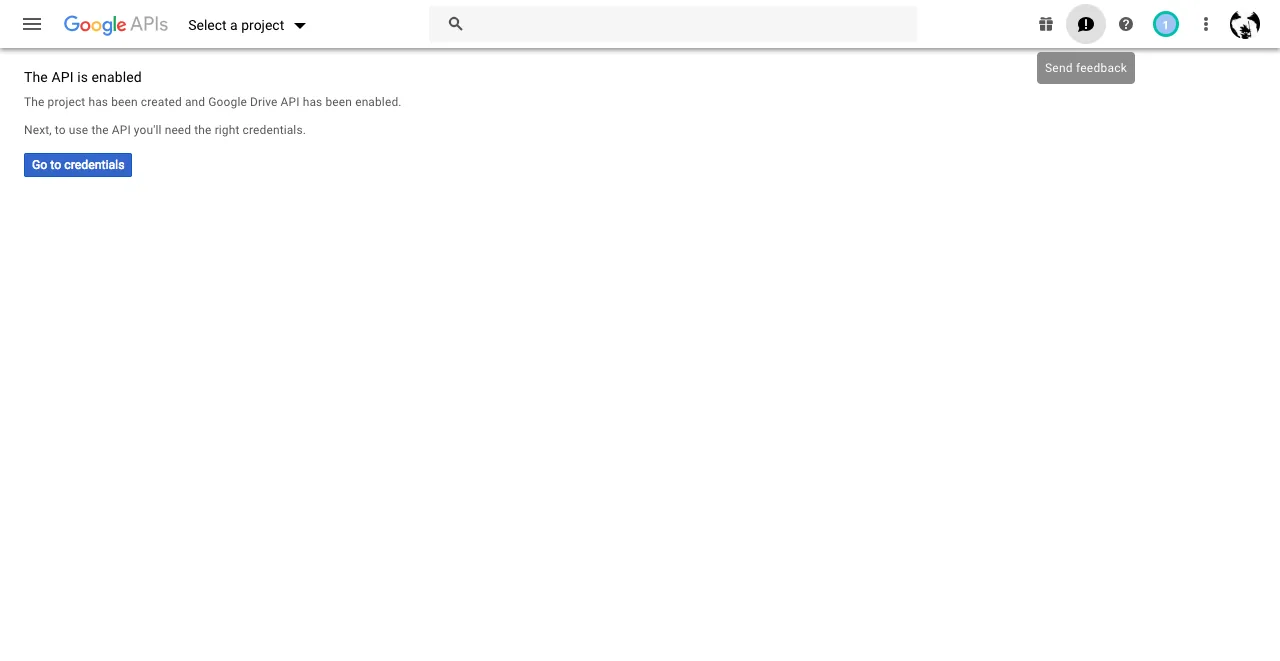
Google confirms the API is enabled. Click Go to credentials.
3. Choose the credential type
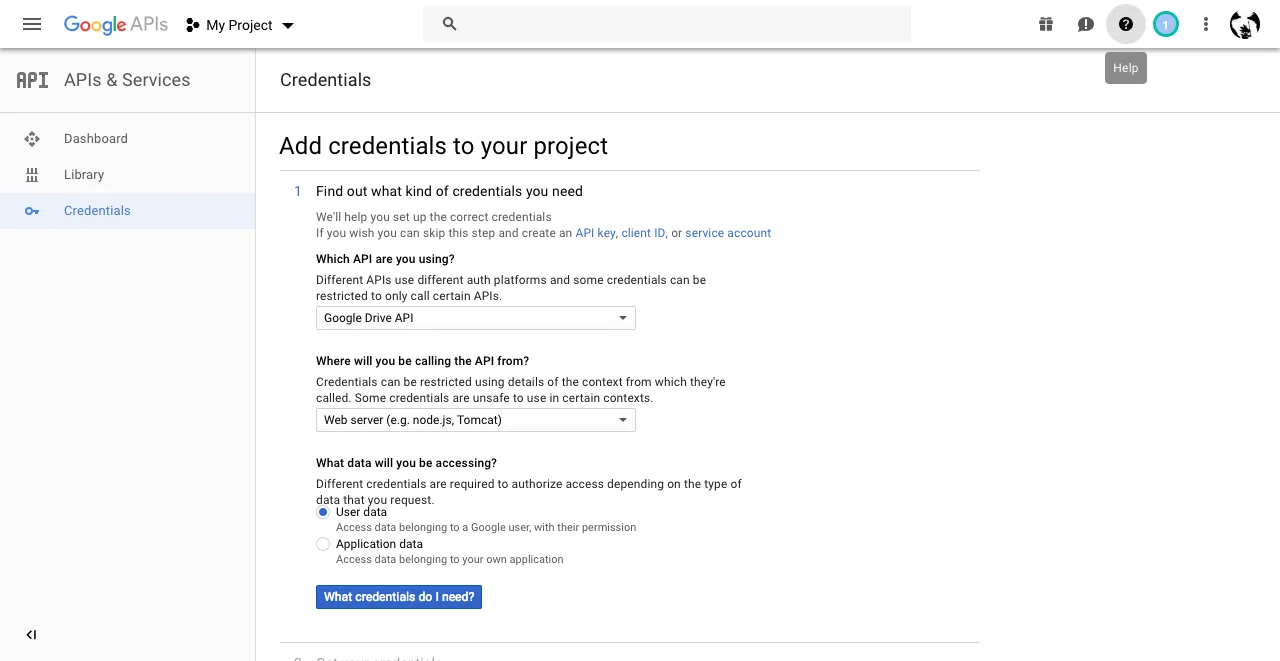
Choose Google Drive API in the first dropdown, Web server in the second, and User data. Then click What credentials do I need?
4. Create the OAuth client
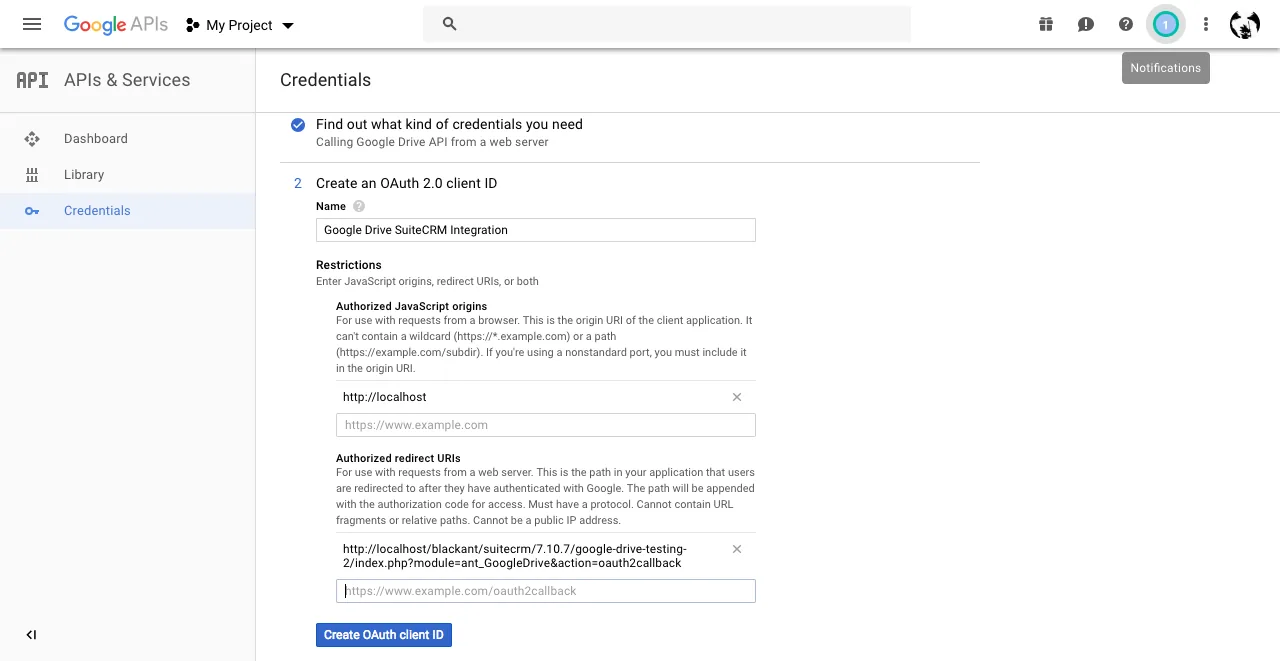
Give the app a name (for example, Google Drive Integration), enter your domain, and paste the authorised redirect URL from the SuiteCRM settings page. Click Create OAuth client ID.
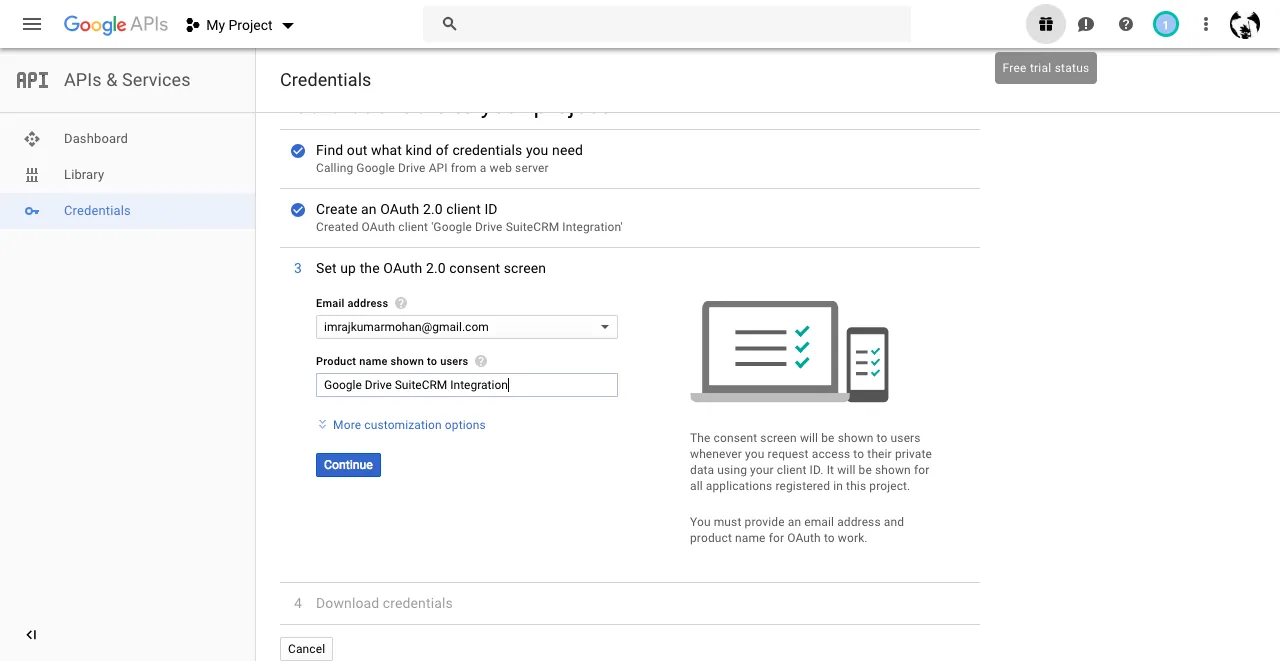
5. Name the product
Give your product a name and click Continue.
6. Download your credentials
Click Download to get the JSON file, then Done. Upload this file in Google Drive Settings in SuiteCRM.