Configure the portal and welcome emails
Customer Portal
Set the portal URL and modules
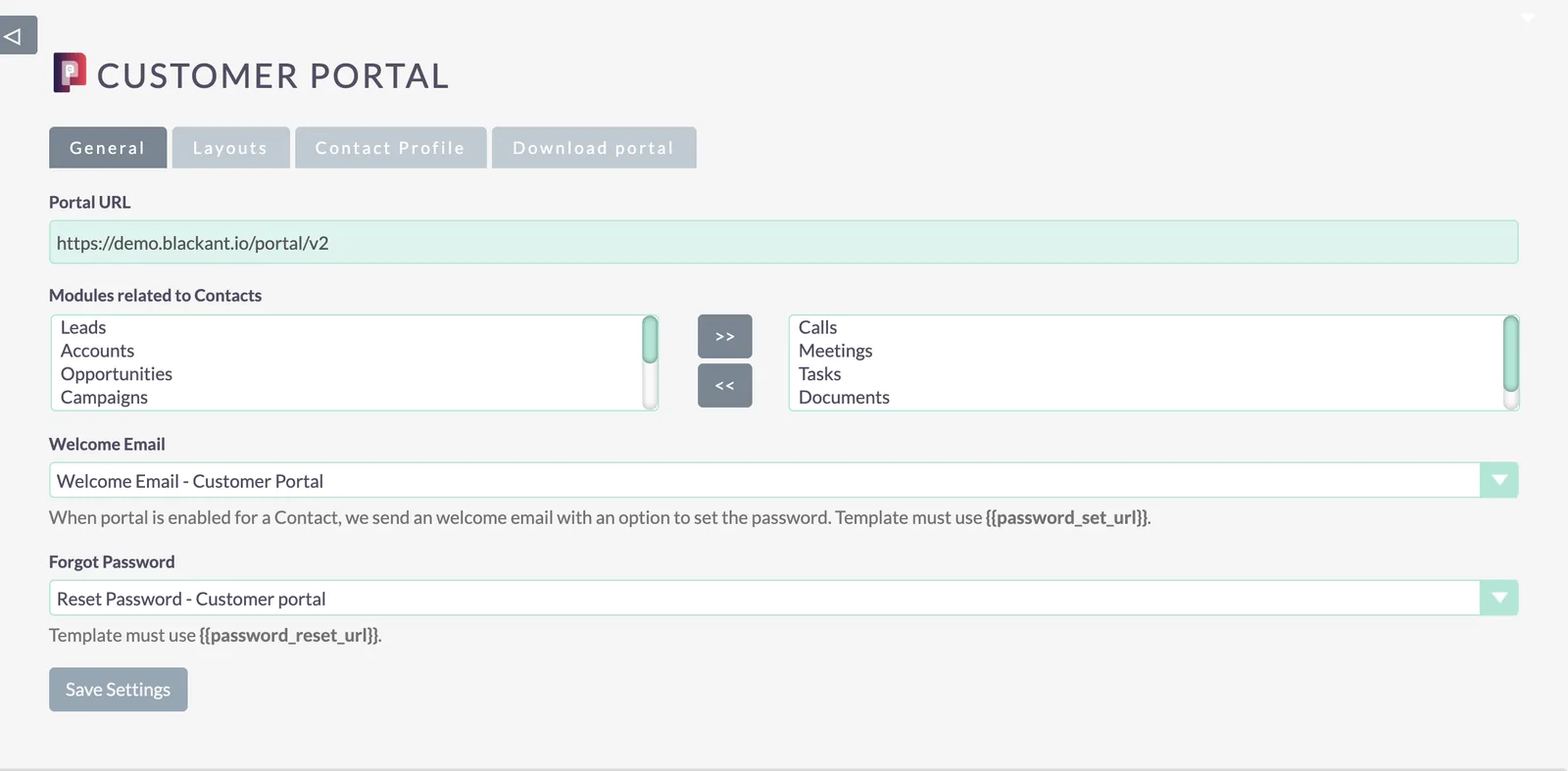
Set the Portal URL your customers will use to log in, then choose the Contact-related modules to display — for example Calls, Meetings, Tasks, Documents and Cases.
Give customers access
For each contact, use an email address as the Portal Username. Selecting Enable portal sends the customer an email to set their password.
Customise the emails
Welcome and Forgot password email templates are included and can be customised. If you create your own templates, include:
{{password_set_url}}in the Welcome email{{password_reset_url}}in the Forgot password email
Was this helpful?
NextCustomer groups, layouts and permissions →