
Your CRM documents. Connected to Google Drive.
Upload CRM documents to Google Drive, then preview, download and share them from SuiteCRM.
How it fits
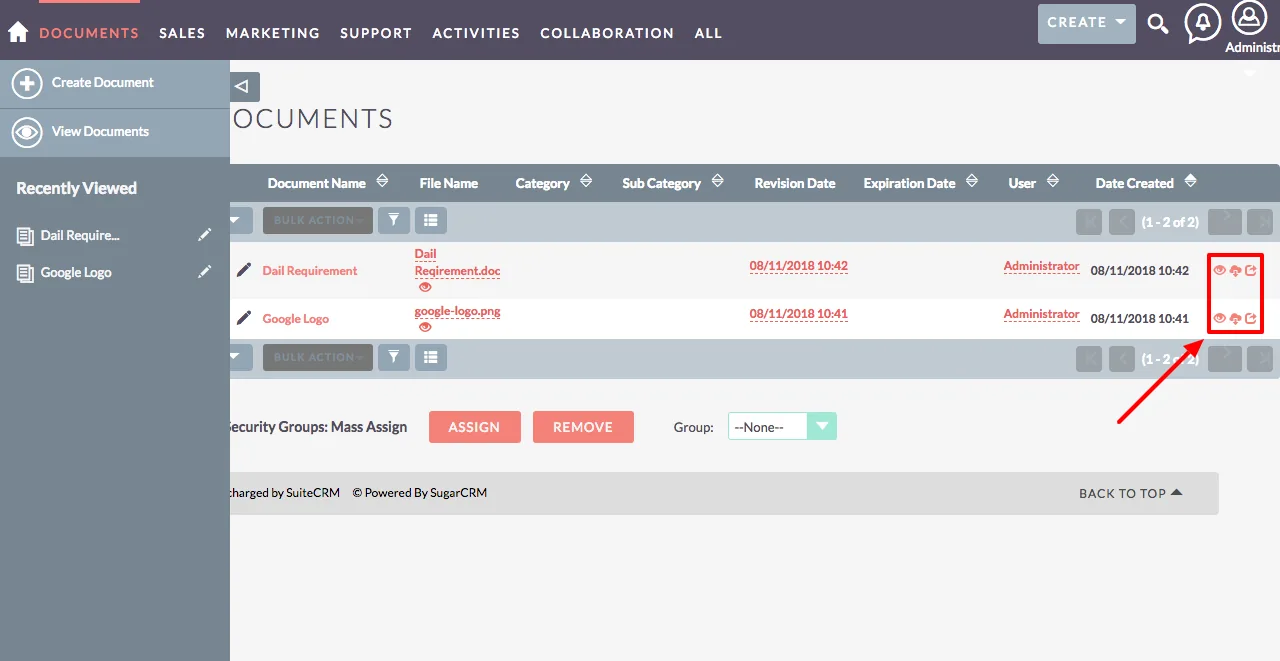
Preview, download and share from the CRM.
Open a preview, download a file or generate a shareable link straight from the Documents list and related-document lists.
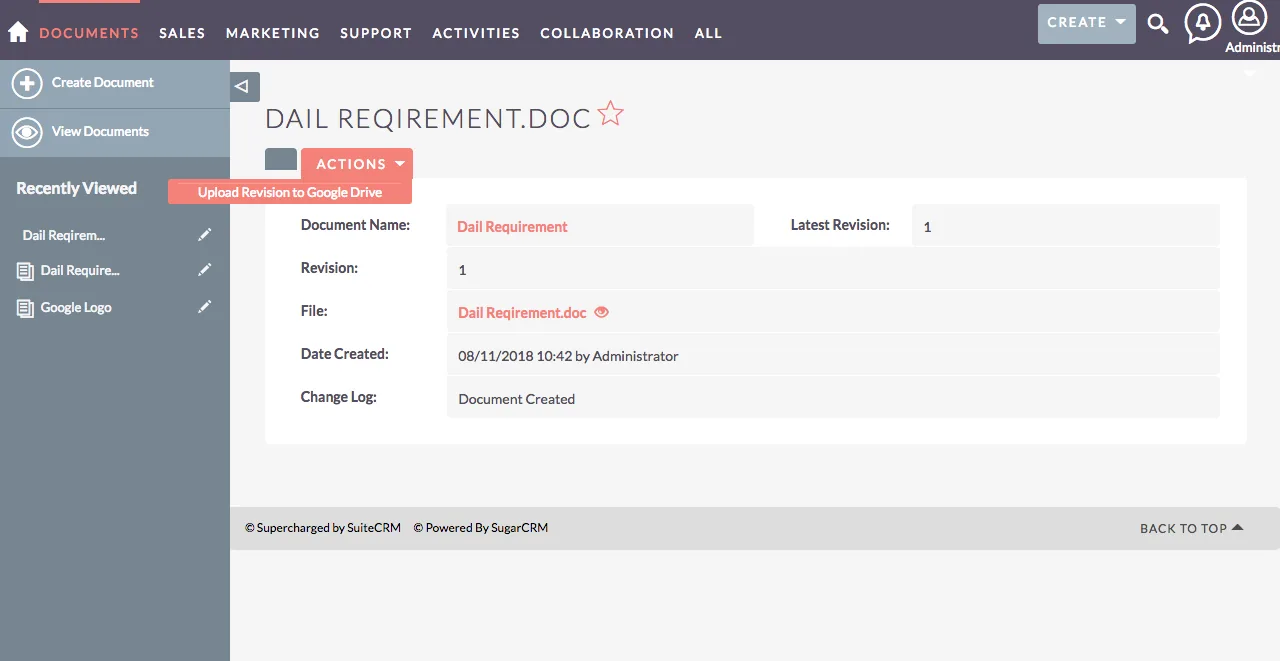
Bring existing documents across.
Documents already in your CRM get an upload action, so older files can move to Google Drive too.
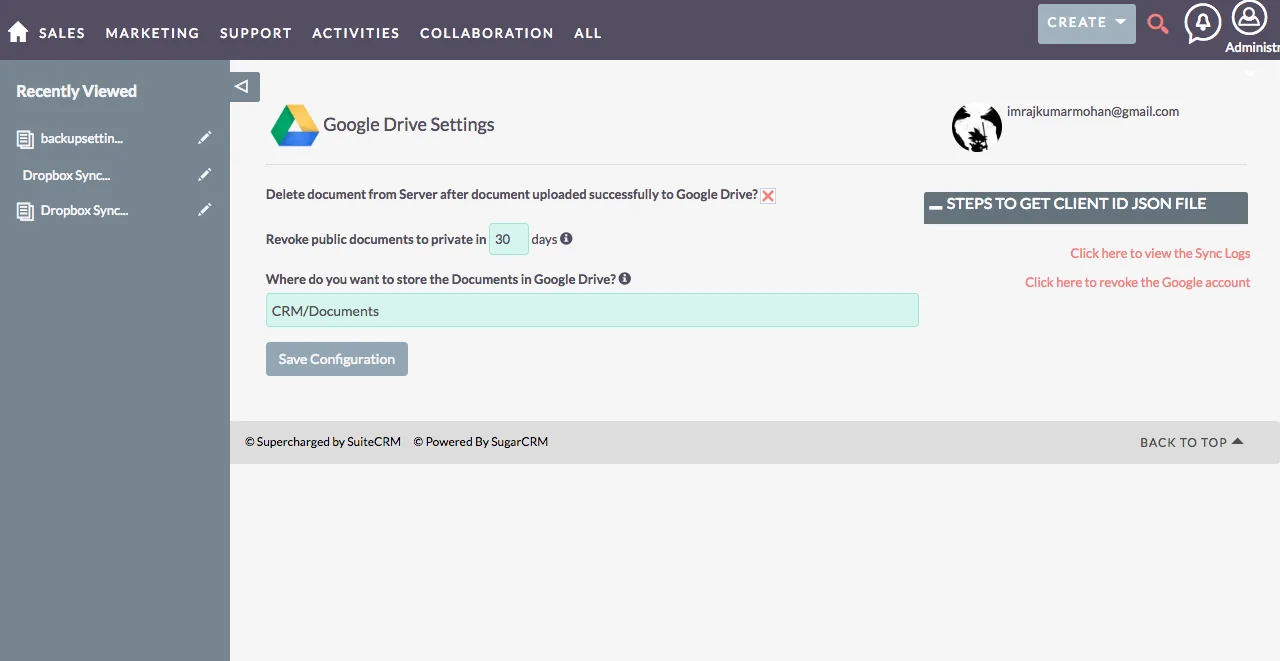
Choose where your files live.
Pick a Google Drive destination folder and decide whether to keep the uploaded file on your CRM server.
Everything in Google Drive Integration
Preview and download
Open a document preview or download a file from the document list.
Create a shareable link
Generate a document link from SuiteCRM; check its access before sharing.
Configure document storage
Choose a destination folder and whether to retain files on the CRM server.
See sync status
The Synced to Google field shows which documents are in Google Drive.
Control public links
A scheduled job can revoke public document access automatically.
Up and running in three steps.
Setup guide- 1
Install the module
Download the ZIP from your account, then upload and install it in SuiteCRM under Admin › Module Loader.
- 2
Create a Google project
Create a Google project with the Drive API enabled and download your client ID and secret.
- 3
Connect and choose a folder
Upload the credentials in Google Drive Settings, then choose a destination folder and file retention.
Check before sharing: when “Is Document public” is checked, anyone with the document URL can view it.
- SuiteCRM module (ZIP)
- Google project setup guide
- Re-download anytime from your account